
Highlighten / Highlight multiple words in a PDF
Guide · PDF
Highlight multiple words in a PDF at once.
Find in Preview and most PDF readers looks for one word or phrase at a time and marks it in a single color. When you need ten terms marked in one pass — each in its own color — Highlighten does it for the whole PDF, scans included.
Step by step
Three steps.
- 1
Open the PDF
Drop the PDF (or a folder of them) onto Highlighten. Scanned pages are read with the Mac's on-device text recognition.
- 2
Type your words
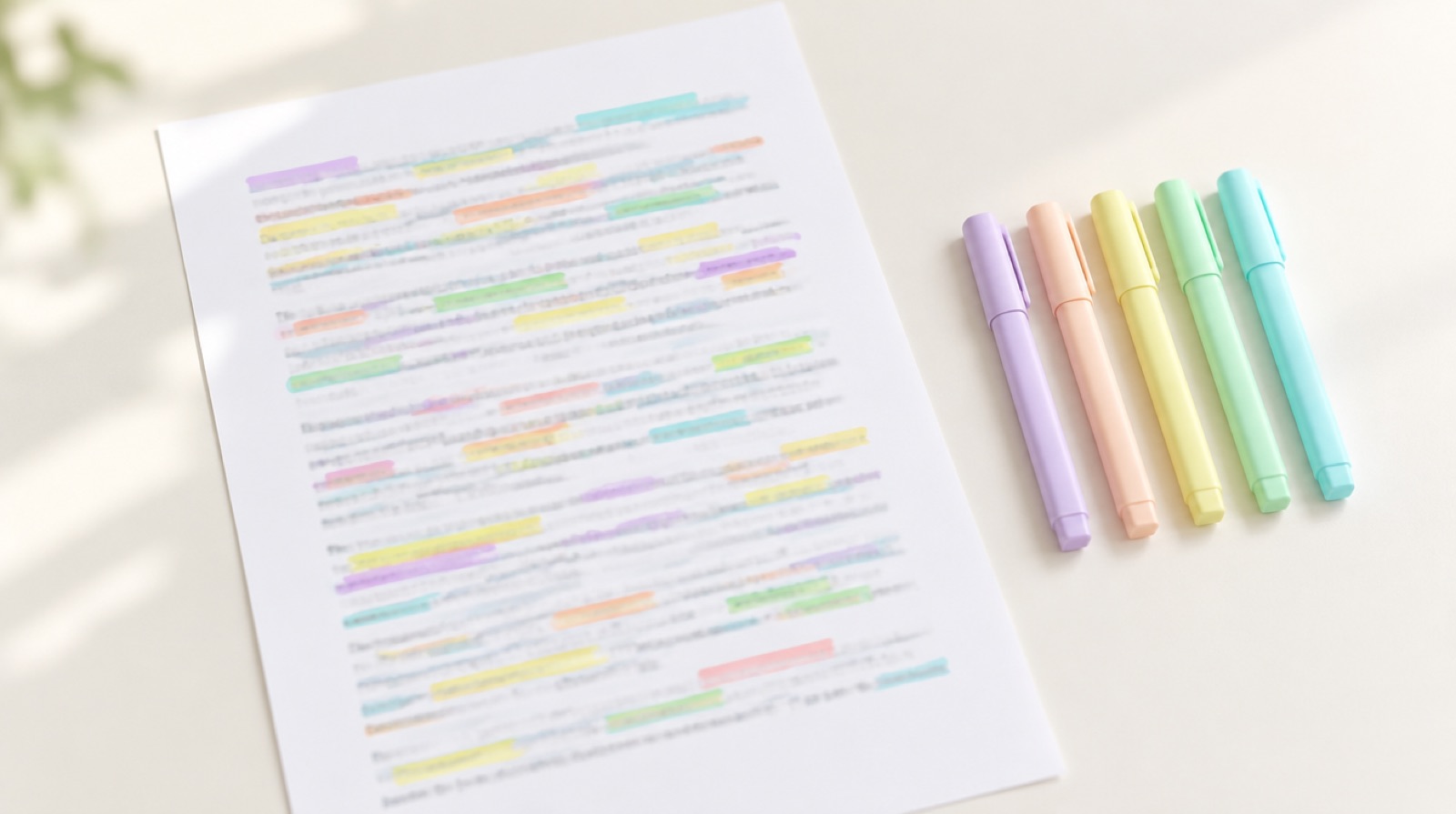
One word or phrase per line. Each gets its own highlighter color; click a word to pick another ink.
- 3
Print or export
Choose a highlight style — rectangle, rounded, pill or hand-painted — and print, or export a new highlighted PDF. The original file is never changed.

Why not Find?
Find shows one term at a time, so checking a long list means searching again and again and remembering what you saw. Highlighten marks every term at once, counts each one, and shows which terms are missing from the document.
Questions
Does it work on scanned PDFs?
Yes. Scanned pages are read with on-device text recognition, so the words can be found and highlighted. Scans are part of Pro.
Is the highlighted PDF still searchable?
Yes. Highlights are added on top of the page; the text underneath stays selectable and searchable.
Can I number the highlights?
Yes. Copies can number each match, either per word or in one running count in reading order.
More guides